Fewer steps, faster takeoffs: a guide to the new Countfire

Countfire has had one of its biggest updates yet. We’ve redesigned key workflows to remove unnecessary steps, reduce interruptions and help you complete takeoffs faster.
Here’s what’s changed, what’s moved and how the new Countfire helps you work more efficiently.
Smart Select: AI where it counts
We’re always looking for ways to make takeoffs faster without compromising accuracy. That means using AI where it genuinely adds value and enhancing the workflows estimators already know, rather than reinventing the takeoff process. That’s why we built Smart Select.
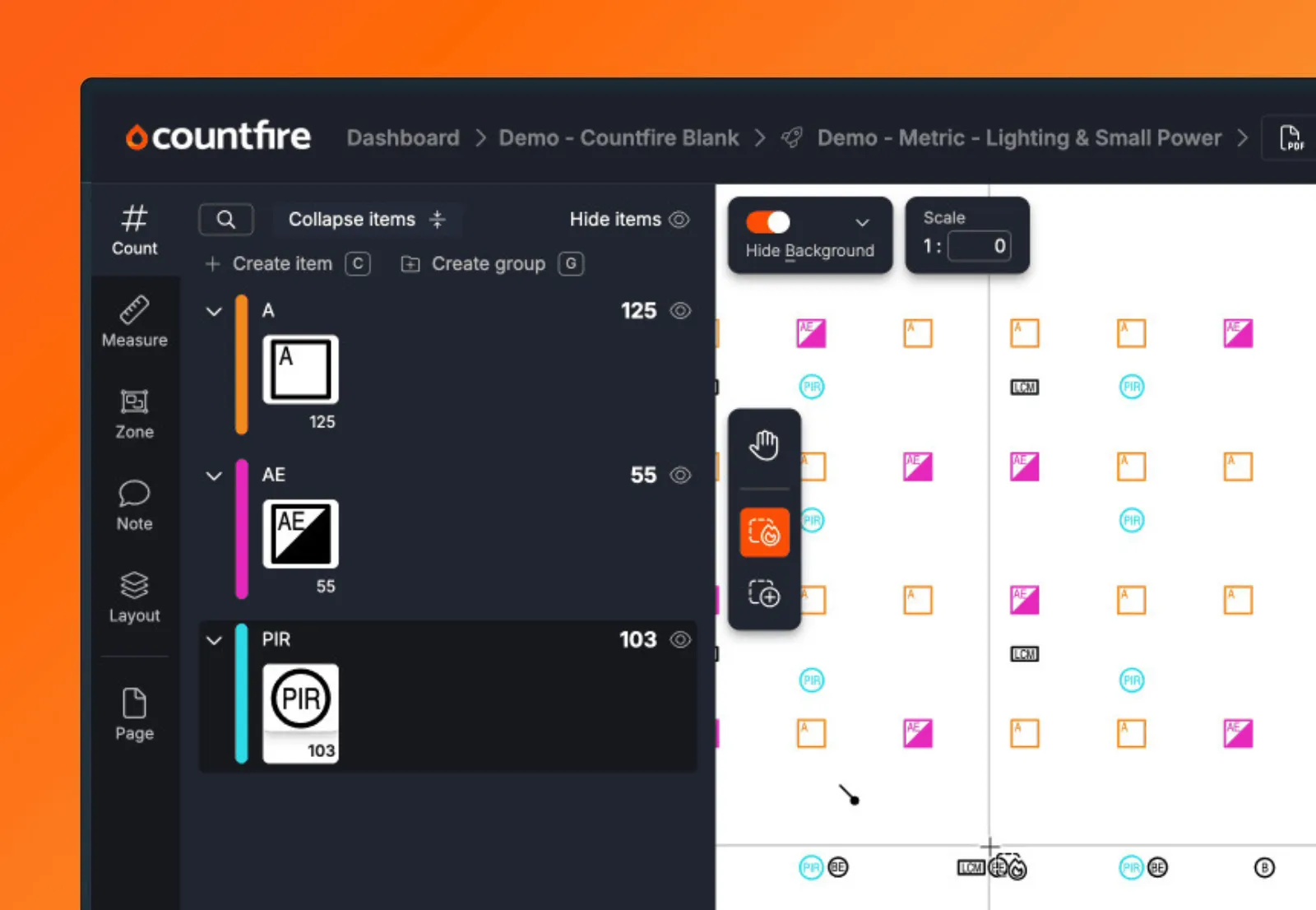
Previously, every time you created an item, you had to stop counting to name and categorise it. With Smart Select, Countfire’s AI automatically names and sorts your selections as you work, so you can count first and organise later.
The result is a faster, smoother takeoff, with the accuracy and control you’d expect from Countfire.
Using Smart Select
- In the Count tab you will see a new toolbar showing that you are in “Smart Select” mode
- As you start making selections, items are created, named and organised automatically
- If you want a selection added to an existing item, switch to “Add to current” (shortcuts: 1 = Smart Select, 2 = Add to current)
Other improvements
- Easily move selections by dragging and dropping them between items, or drag to the right to create a new item
- Preview each selection so you can clearly see what is being counted
- Zones are now live so you only see quantities within your zone(s) as you count
Linear upgrade with automatic bends & tees
Adding fittings has always been one of the most repetitive parts of a linear takeoff: measure the runs, then go back over them for every bend and tee. Our new Length System counts them for you as you draw.
Using Length System
- In the Measure tab there is a new toolbar to select what to measure (lengths, points or areas) - by default it will be set to “Length System” mode
- With “Length System”, bends, tees and reducers will be generated automatically as you measure
- Use the toolbar to switch to standard “Length” mode if you don’t want bends and tees to be added automatically (shortcut = shift + 2)
- As you measure, you will also notice improved snapping controls to help you create exact measures
Find your way around
We’ve moved a few things to more intuitive places and given more room to the tools you use most:
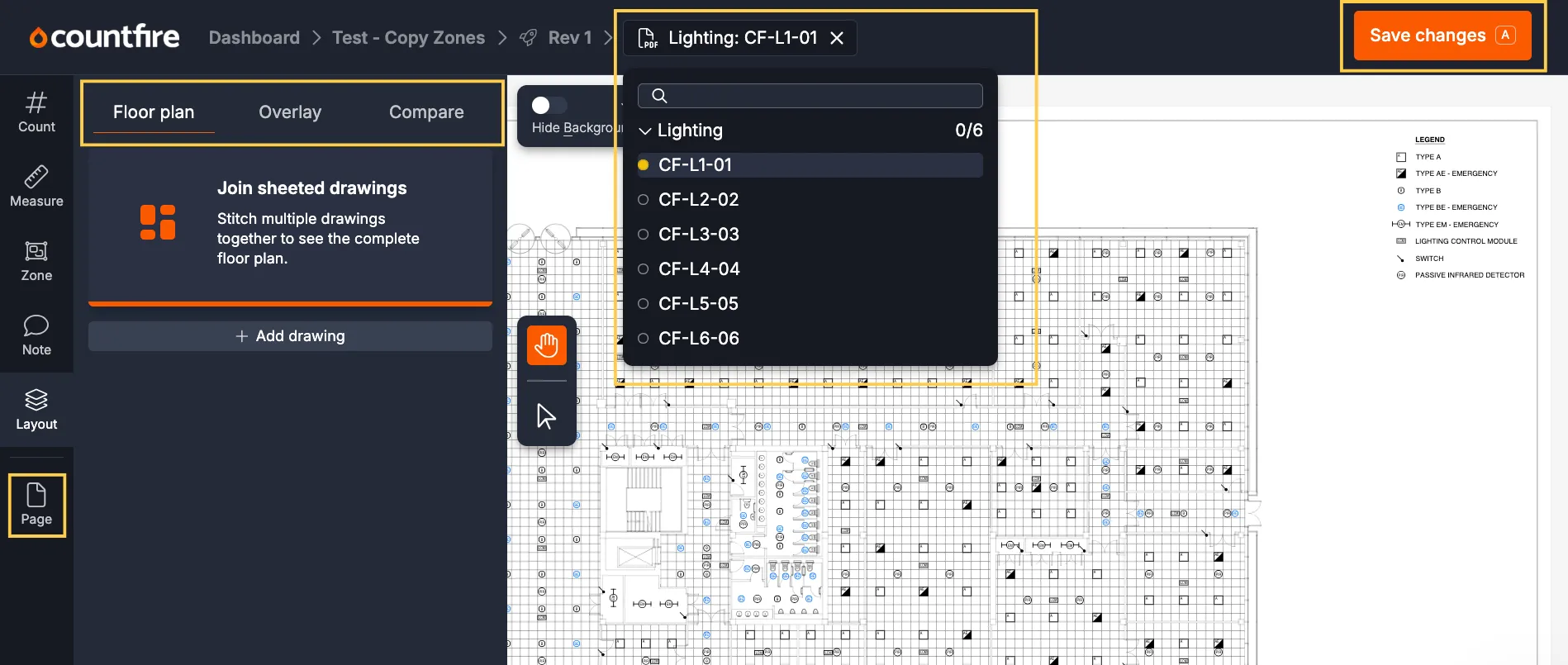
- Save button now top right
- Drawing selector now at the very top
- Copy zones is now within the Zones tab
- New Layout tab for floor plan, overlay and compare
- New Page tab to manage drawing titles
How to switch to the new Countfire
The new Countfire is available now as a beta, and you can turn it on yourself:
- Open your profile menu in Countfire
- Select Switch to Beta
- Your projects and data come with you, so you can carry on where you left off
One thing to be aware of: if you decide the beta isn’t right for you yet, contact our support team and we’ll switch you back.

Here to help
If you would prefer one of our Product Specialists to show you around, book a 15-min demo with the support team.
Related articles

Celebrating 10 years of Countfire
This November marks the 10 year anniversary of Countfire. In this blog, we reflect on Countfire’s history, how we’ve helped estimators worldwide, and what’s in store for the future. But most of all, we would like to extend our gratitude to our customers who have made this all possible.
Read article
Countfire announces the Electrical Industries Charity as its charity partner
Countfire has named the Electrical Industries Charity (EIC) as its charity partner. Here's why we chose the EIC and what we'll be doing to support them.
Read article
Countfire joins TAG Software Group
We have some exciting news: Countfire has been acquired by TAG Software Group, a subsidiary of Valsoft Corporation.
Read article